
Explanation
A closer look at selected parts of STORM. Pick a topic in the contents and jump straight to it.
First launch after installation
The first launch lets you create a standalone game (without features such as setting up missions, etc.) or simply join a game.
Own game (Single)
A quick game with no organizer — for a group of friends.
- Anyone can create the game without an organizer; the game expires after 36 hours.
- The creating player picks “Own game (Single)”, enters an Access code and their name, and confirms “Create and show QR”.
- Everyone else joins via the join link or QR code shared by whoever created the game.
- The game has a single faction and you cannot create missions or groups in it — it is meant for playing with friends.
Join a game
Joining a game created by an organizer or by someone via Own game (Single).
- The event is created either by an organizer — who sets the number of factions, groups and missions/tasks.
- …or the game is created via the “Own game (Single)” option.
- The player then taps “Scan QR” and scans the code. Or taps a join link from email / WhatsApp / Facebook, etc., shared by the game creator.
Player aggregation on the map
At a larger event there can easily be fifty or more players in a small area. Rendering fifty separate dots needlessly strains the phone, the map slows down, and the commander gets nothing useful out of that clutter anyway — what they mainly need to know is how many people are where.
That is why STORM can aggregate positions: instead of individual dots, the player marked as the group commander carries a single marker with a number showing how many players are in their team.
Example: Five groups of ten players = fifty people. Without aggregation, fifty dots on the map. With aggregation, five markers, each showing “10”. The commander instantly sees there are fifty players on site, the map stays readable and rendering stays smooth.
What you need for it
For a team to collapse into a single marker on the map, two things must be in place:
- Mark the team commander On one player in the team, open Settings → Player in the app and tick “Commander” in the “TEAM” section. That player then represents the team on the map.
- Turn on the map filter On the map open Filter and, under “Team display”, tick “Commanders only”. In each team you then see only the commander with a numeric badge; your own position is always visible.

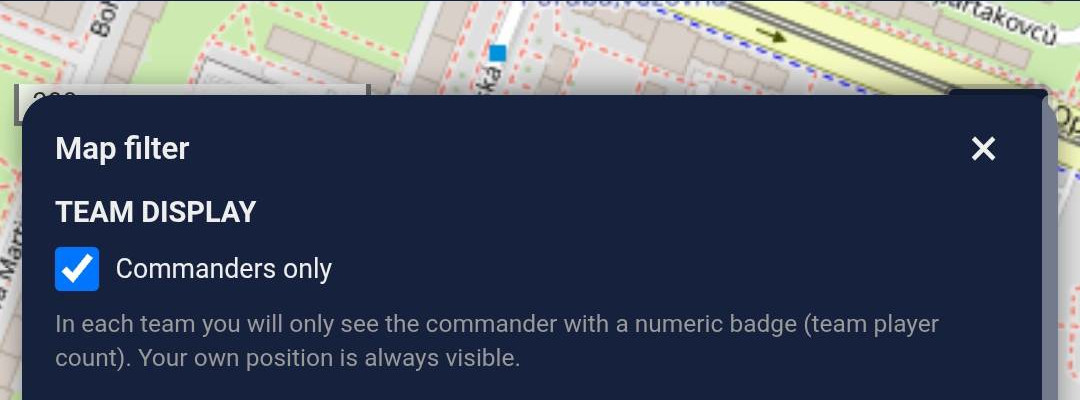
What the “Team player count” field does
The number shown on the commander is driven by the “Team player count” field in Settings → Player:
- 0 = automatic count: only real players who are alive and online (with the app running) are counted. The commander on the map then carries a number equal to the sum of active players.
- A specific number (e.g. 10) = manual override: the commander shows exactly this value regardless of how many people actually run the app. Handy when a team has ten people but only one or two have the app — the map still shows “10”.
- The value applies to all team members; you only set it once.
What you gain
- Less map-rendering load — smoother operation even on weaker phones.
- A clearer map — the commander sees force distribution, not a cloud of dots.
- The number on the marker matches the current player count of the group.
Remote ID drone detection
Every drone is legally required to broadcast its identification and position — so-called Remote ID. It is an open standard (ASTM F3411, also known as Open Drone ID) and it is broadcast unencrypted precisely so that anyone can check what is flying overhead.
STORM listens for that broadcast and draws the detected drone straight onto the game map. The receiver is purely passive — it transmits nothing, never talks to the drone, and needs no cooperation from the pilot. All you need is to be within radio range; you don't have to own the drone or be paired with it.
What matters most is where the position comes from: the coordinates are read straight out of the radio broadcast, i.e. from the drone's own GPS. The position of the phone that picked up the signal is never mixed in — and if the drone does not report its position, STORM would rather not show it at all than guess.
What it means in a game: The enemy launches a drone to scout. The moment it comes within range of any phone with reception enabled, or within range of the ground sniffer, it appears on everyone's map as a red object with a question mark. You can see that you are being watched, where the drone came from and how high it is — and the pilot has no way of noticing.
Two paths a detection takes into STORM
Remote ID can be picked up either by a player's phone out in the field or by the sniffer owner's fixed device. Both end up on the same map:
- A player's phone — reception is opt-in under Settings → GPS → Drone via the “Receive Remote ID” switch. It is off by default. Works on Android 11 and newer, and only while the app is in the foreground.
- A ground sniffer — a standalone box with its own antennas that the sniffer owner mounts on a mast. Its coverage depends on where it is placed and how powerful it is; tested with weaker 5dBi antennas the range was over 2 km with line of sight. It listens for Remote ID over both Wi-Fi and Bluetooth, and reports detections to STORM over the internet. Players need to do nothing at all.
How to pair your own drone
Pairing tells STORM that a particular drone is yours. From then on it positions itself on the map and is visible only to your faction and its allies.
- Find the serial number Turn the drone on and look at STORM — it shows up on the map as an unknown object. Tap it to open the drone card, which carries the serial number with a copy icon next to it.
- Enter it in the app Open Settings → GPS → Drone section, paste the serial number into the “Serial number (Remote ID)” field and confirm with Pair.
- Done The drone appears on the map by itself on the first detection and keeps positioning itself from then on.
Anyone can pair: A drone does not have to be paired by its pilot — any player who can see it on the map can do it. You spot a drone, tap it, and you know it is yours? Pair it. One pairing is enough and it applies to the whole faction.
Who sees which drone
The whole rule rests on a single question: does the drone have an owner?
- An unpaired drone belongs to nobody, so there is nobody to hide it from. Every player of every faction sees it, drawn in red with a question mark and the label “Unknown”. A foreign aircraft over the field is information that belongs to everyone equally.
- A paired drone is its faction's reconnaissance asset. Only its operator's faction and their allies see it — exactly the way a player position behaves.
- One consequence catches people out: pairing someone else's drone by its serial number hides it from the opposition. While it is unknown everyone sees it; the moment somebody pairs it, it disappears for everyone outside their faction. Pairing a foreign aircraft “just to have it named” therefore stops the other faction from pairing it = unfair. Airsoft is a fair-play game and the whole of STORM is built on that: if you don't know the serial number of a drone in your own faction, leave it unpaired.
What you see about a drone on the map
- A quadcopter icon rotated to the direction of flight and colored by faction; an unknown object is red with a question mark.
- Tapping it opens the drone card: model, serial number, altitude, speed, distance from you and the age of the last fix.
- Battery level only for your own paired drone — Remote ID does not broadcast battery, the operator reports it.
- Signal loss is visible in advance: after a minute of silence the icon dims and a countdown appears. The server only removes the drone from the map after five minutes, so you get roughly four minutes in which the drone leaving is visible up front.
- Both the appearance and the loss of a drone are written into history along with coordinates — from history you can jump straight to the spot on the map.
- Organizers also see drones on the admin live map and in the event replay, where the flight trace plays back just like player movement. Replay only has a trace for events played after this feature was deployed.
Limitations worth knowing about
- A phone only picks up Remote ID over Wi-Fi Beacon. Drones and add-on RID modules broadcasting over Bluetooth are picked up by the ground sniffer instead.
- iOS cannot do Remote ID at all — Apple does not let apps scan Wi-Fi. Reception on a phone is therefore Android 11 and newer only.
- Android itself throttles Wi-Fi scans to roughly two per minute, so the marker moves in jumps. It can be turned off in the phone's Developer options (“Wi-Fi scan throttling”); the app reports the state but can do nothing about it on its own.
- A drone hovering in place reports at most once a minute. That is not a reception dropout but a safeguard against pointless data traffic.
What you gain
- You know about a drone over the field even when nobody reported it — enemy reconnaissance included.
- Your own drone positions itself on the map, nobody has to drag it around by hand.
- Data traffic is negligible, in the order of hundreds of kilobytes per hour — a weak signal is no problem.